


HD Camera
4.64.39K Reviews
App Specs
- Version
- 1.4.14
- Updated On
- License
- Free
- Downloads
- 100,000,000+
- Developer
- HD Camera
- Categories
- Photography
- Platform
- Android, iOS
Screenshots
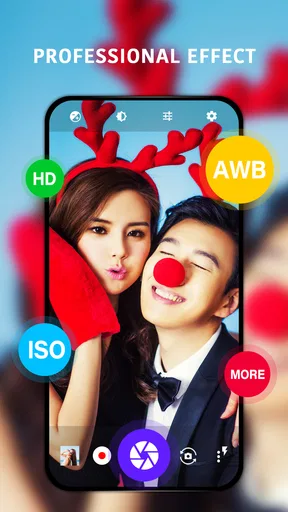
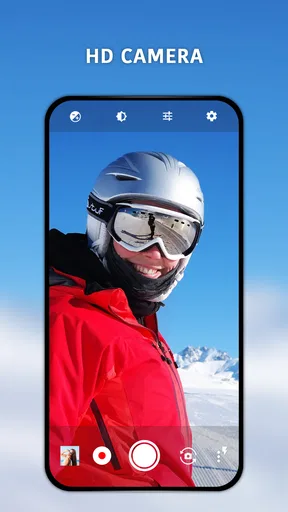
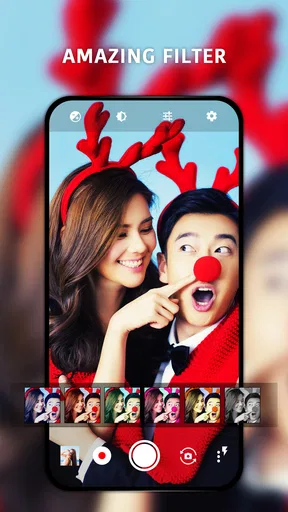
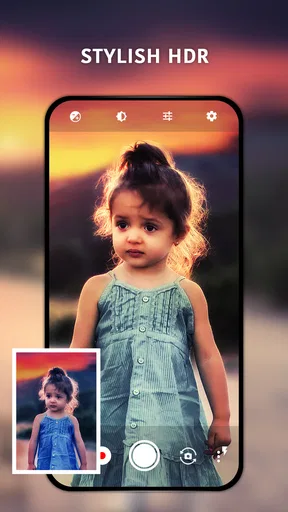
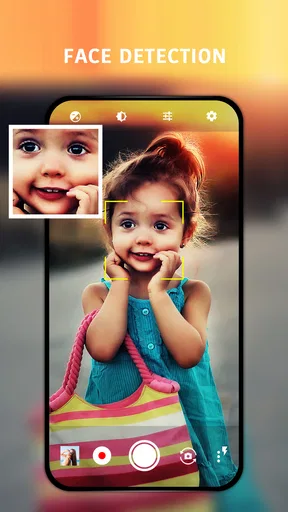
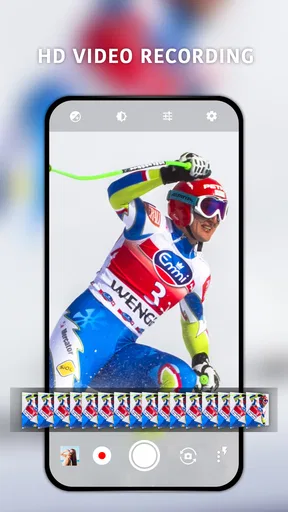
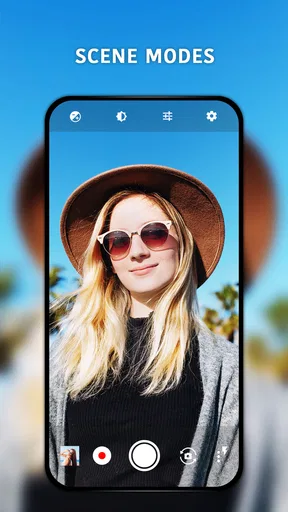
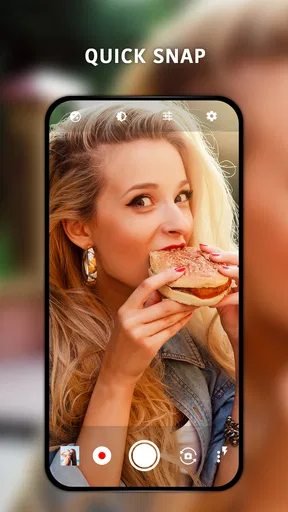
 Analysis by AppCompare
When I first open HD Camera, I want to know one simple thing: can I get a useful photo without digging through menus or learning a complicated camera system? This free photography app from HD Camera aims for an approachable answer, pairing a straightforward layout with tools for adjusting a shot. I would treat it as a practical alternative camera to try, not as a promise that every phone will suddenly take better pictures.
What to expect from a camera app that keeps things approachable
The appeal here is the combination of familiar point-and-shoot use and a few controls for people who want more say over the result. Manual focus, exposure, and white balance can help when the automatic camera makes a choice you do not like. Filters and effects offer another way to change the look, while a high-resolution mode is intended for scenes where fine detail matters.
That balance is useful for a first-time user: you can begin by taking ordinary photos and explore the controls only when a shot needs them. It is not the same as having a dedicated camera, and the experience depends on the phone’s own camera hardware. Think of the app as another way to operate your phone camera rather than a replacement for the sensor and lens inside it.
Getting from installation to a first useful shot
After installing it, I would start with a familiar subject in good light rather than immediately testing every setting. Open the camera, frame something still, and take a photo using the default approach. That first picture gives you a baseline: you can judge the framing and brightness before changing anything, which makes it easier to tell whether a manual adjustment has actually helped.
If a subject looks too bright or too dark, try changing exposure in small steps and compare the result with the original. For a close object that the camera is not focusing on as expected, manual focus is worth testing, but it is less forgiving when either your hand or the subject moves. White balance is most useful when indoor lighting gives colors an unwanted cast; adjust it while looking at a neutral surface, then check that nearby colors still look believable.
For a quick first success, photograph a stationary object near a window. Keep the phone steady, take one ordinary shot, and then try a second with a small exposure adjustment. Comparing the two is more informative than changing several controls at once. Once you know what the app changes, you can use those controls deliberately rather than guessing.
Where its controls help—and where they take practice
The manual tools are most valuable when the phone’s automatic choice is close but not quite right. Exposure can rescue a scene where a bright window or pale background is distracting from the subject. Focus can help with a still detail, such as a label or a small object on a table. White balance can make a warm indoor scene look less yellow, though a warmer result may be exactly what you want for a cozy evening photo.
Worth Reading Before You Choose

Baby Panda World Brings Quick Play to Modern Phones, but Its Game Library Feels Busy

ESPN’s Live Game View Makes Following Close Games Easier

QuizzLand Review: A Good Fit for Short Trivia Breaks, Not Every Player

Basketball Stars: Multiplayer Is Fast, but Can It Recover When Matches Go Wrong?

WEBTOON Turns Phone Updates Into a Better Reading Routine

Link to Windows Runs on Shared Habits, Not Social Feeds
There is a trade-off: more control also means more chances to make a photo worse. If you set focus for a nearby subject and then point at something farther away, remember to check it again. If you change exposure for a bright surface and then reframe a darker scene, the earlier choice may no longer suit it. I recommend changing one setting at a time and taking a test image, especially when the moment is not easy to repeat.
Filters are best treated as a finishing choice rather than a fix for every lighting problem. A filter can give a photo a consistent mood, but it can also make skin tones or product colors look less natural. When the exact color matters—say, photographing a craft project to show its real shade—I would take a straightforward version first and only then decide whether an effect improves it.
Everyday situations where a different camera workflow makes sense
Imagine taking a quick picture of a handwritten recipe under warm kitchen lights. If the automatic image looks too yellow, a white-balance adjustment can be worth a test. If the paper looks washed out, a modest exposure change may help preserve the writing. I would take a few seconds to review the image before putting the recipe away; a camera app cannot recover a missed moment simply because it offers extra controls.
For a child, pet, or passing street scene, speed matters more than fine tuning. In those situations, I would favor the quickest camera workflow available on the phone and avoid adjusting focus or exposure while the subject moves. The manual options are better suited to still scenes, planned portraits, food, and close details than to action that may be gone before you finish setting up.
It can also be handy for photographing a document or an item you plan to sell, provided you check the result carefully. Keep the phone parallel to the page or object to reduce perspective distortion, use even light, and inspect the edges before sharing. A camera app can make capture convenient, but it is not a substitute for a dedicated scanning workflow when you need document processing or neatly organized files.
How it fits beside the camera already on your phone
Most phones include a default camera app, and that is still the sensible choice when you rely on its particular shortcuts or tightly integrated features. The built-in option may be faster to reach from the lock screen, depending on the phone, and it may handle specialized modes in a way that suits your device. I would keep it available rather than assuming a second camera app needs to replace it.
The reason to try this app is its combination of manual adjustments and a simple camera layout. It may suit someone who wants to experiment with focus, exposure, or white balance without moving straight to a more involved photography tool. On the other hand, a photographer who needs a carefully controlled workflow, extensive file handling, or a broad set of specialist options may prefer a more advanced camera app. The right choice depends on whether you value quick familiarity or deeper control.
Editing apps are another different kind of alternative. They can change a photo after capture, but they cannot always correct missed focus or motion blur. If the problem is how the camera captured the subject, adjusting the shot before pressing the shutter is more useful than relying on edits afterward. If the photo is already well exposed and focused, an editor may be the better place to add a look.
A few practical checks before relying on it
Before an important occasion, take a couple of test photos and review them at the size you will actually use. A thumbnail can hide soft focus or a color cast that becomes obvious when you zoom in. Try both the default capture and any setting you expect to use, then keep the approach that gives you the more dependable result on your phone.
Also consider the destination. A photo intended for a social post may not need the same detail as an image you plan to crop or keep for reference. The high-resolution option sounds useful when fine detail is important, but larger or more detailed images can be less convenient to manage and share. Choose quality with the task in mind instead of selecting the highest setting automatically.
If the controls feel unfamiliar, leave them alone for everyday snapshots and explore one at a time when you have a quiet moment. There is no need to master every option before the app can be useful. A simple photo that is in focus and well framed is often better than a technically ambitious shot that took too long to set up.
For context, the app has a 4.6 average from around 412,000 ratings, and it has been installed over 100 million times. It is rated for Everyone and is free to use. Those figures suggest that many people have tried it, but they do not tell me whether its handling will feel right on your particular phone; a short test with a familiar subject is still the best way to decide.
The app was released on April 10, 2018, and its current version is 1.4.12. It supports Android 4.4 and later. Those details make it useful to keep in mind if you are checking compatibility before installing, especially on an older device. The developer is HD Camera.
One question I would ask before making it my everyday camera is whether the extra controls improve the pictures I actually take. Try it with a still subject, then compare the results with the phone’s usual camera. Another is whether a photo looks right after sharing; check a sample in the place you normally view images, since a filter that looks appealing while composing may feel too strong later.
I would also be selective about when to use the manual options. They make most sense when you can pause, inspect the frame, and retake it. For spontaneous moments, a familiar default camera is often more dependable simply because it asks less of you. That is not a flaw so much as a difference in purpose: flexibility helps when you have time, while simplicity helps when you do not.
Hey there! So, today I got my hands on the HD Camera app, and I’ve got to say, it’s like having a mini photo studio right in your pocket. If you’re like me and love snapping pics on the go, this app might just become your new best friend.
Why I Decided to Try It
First off, I’ve always been a sucker for apps that promise to amp up my photo game. With smartphone cameras getting better and better, having a solid app that complements your phone’s camera is a must. The app seemed like a promising choice with its rave reviews and sleek features list. Plus, who doesn’t want to capture life’s moments in high definition?
User Interface and Experience
Let’s talk about the user interface because, honestly, it can make or break an app. The moment I opened the camera, I was greeted with a clean and intuitive layout. No clutter, just straightforward options that make it easy for anyone to dive right in.
The app sports a minimalist design which I absolutely love. Everything is laid out in a way that’s easy to understand, even if you’re not tech-savvy. The buttons are well-placed, and the settings are a breeze to navigate. It’s like the app knew exactly what I needed without me having to search high and low.
Features That Stand Out
Okay, let’s get into the juicy part – the features. The app is packed with tools that can transform your photos from ‘meh’ to ‘wow.’
- Manual Controls: This is a game-changer! You can manually adjust focus, exposure, and white balance. It’s like having a DSLR experience on your phone.
- Filters and Effects: With a plethora of filters, you can easily switch up the mood of your photos. Whether you’re going for a vintage vibe or a modern look, there’s something for everyone.
- High-Resolution Mode: Capture images in stunning clarity. This is perfect for those moments when detail is everything.
- Easy Sharing: Once you’ve got that perfect shot, sharing it on social media is just a tap away. The app makes it super simple to show off your photography skills.
Performance and Usability
Now, all those features are great, but how does the app actually perform? I’ve used apps in the past that were laggy or took forever to load, but this one? Smooth as butter. I didn’t encounter any crashes or delays while using it.
It’s also worth mentioning that the app doesn’t eat up a ton of battery life, which is a huge plus if you’re out and about. And for those worried about storage, the app optimizes photos without compromising on quality, so you won’t find your phone’s memory filling up too fast.
Final Thoughts
Overall, the app is a fantastic tool for anyone looking to enhance their mobile photography. It’s user-friendly, feature-rich, and performs like a champ. Whether you’re a casual snapper or a budding photographer, this app has something to offer.
If you’re ready to take your photos to the next level, give it a shot. You might just find yourself leaving your DSLR at home more often.
Pros
- High-quality image capture with vibrant colors.
- User-friendly interface with intuitive controls.
- Variety of shooting modes for creative flexibility.
- Fast autofocus ensures quick and sharp shots.
- Minimal lag and high performance on most devices.
Cons
- Some features locked behind in-app purchases.
- May consume more battery than standard camera apps.
- Limited editing tools compared to other apps.
- Occasional ads can interrupt user experience.
- Lacks cloud backup integration for photos.
FAQs for HD Camera
What features does the HD Camera app offer?
The HD Camera app offers a variety of features, including high-resolution photo and video capture, multiple shooting modes, and real-time filters. It also includes advanced settings like white balance, ISO adjustment, and exposure control, making it ideal for both amateurs and professionals seeking quality enhancements.
Is the HD Camera app free to use?
The HD Camera app is free to download and use, but it may offer in-app purchases for additional features or ad removal. It’s essential to check the app store description for details on any potential costs associated with premium features or subscriptions.
How user-friendly is the HD Camera app for beginners?
The HD Camera app is designed with a user-friendly interface, making it suitable for beginners. The intuitive layout and easy-to-navigate menu allow users to quickly access features and settings. Additionally, the app often includes tutorials or tips to help new users get started effectively.
Does the HD Camera app require a lot of storage space on my device?
The HD Camera app generally requires a moderate amount of storage space due to its high-quality image and video capabilities. It's advisable to check the specific storage requirements in the app store before downloading to ensure your device has adequate space available.
Are there any privacy concerns with the HD Camera app?
The HD Camera app requests permissions to access your camera, microphone, and storage, which is standard for functionality. However, it’s crucial to review the app’s privacy policy to understand how your data is used and ensure it aligns with your privacy expectations before downloading.


